

When a small business runs on changing shifts, quick messages, and hourly work, the hardest part is often not the job itself. It is keeping everyone aligned while people are moving between the counter, the stockroom, home, and the next shift. I found Square Team useful in that exact situation because it brings team communication, schedule access, and earnings information into one mobile finance-focused app rather than scattering those tasks across messages, paper notes, and separate tools.
I approached it as a worker rather than as an administrator. That distinction matters. Square Team is made by Block, Inc., and its purpose is closely tied to businesses already using Square’s wider ecosystem. It is free, rated for Everyone, and available for devices running iOS 9 or later. The app has been available since October 19, 2018, and its current version is 7.22. Those details make it approachable for a broad team, including staff members who may not be especially comfortable with complicated workplace software.
My overall impression is that Square Team is strongest when it acts as the employee’s everyday access point: check what is happening, see when I am expected, communicate with the team, and review what I have earned. It is less convincing as a complete replacement for every scheduling, payroll, or workforce-management system. The value comes from reducing small points of friction, not from turning a phone into a full operations department.
Following one workday from the first message to the final check
The starting condition: a team that needs one reliable place
Imagine a café, shop, or service business where a shift changes at short notice. One employee needs to know the updated schedule, another wants to check a message, and someone else wants to understand recent earnings. Without a shared work app, those questions tend to arrive through a mix of personal chats, printed schedules, verbal reminders, and separate financial records. The information may exist, but finding the right version takes time.
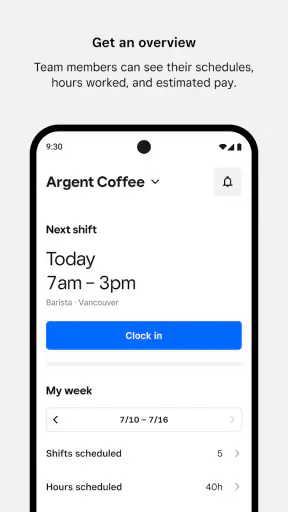
This is where Square Team makes sense. Instead of treating communication as an afterthought, it places it beside schedule and earnings access. I like that combination because these tasks are connected in real life. A schedule tells me when I work; a team message can explain a change; earnings information helps me confirm the practical result of those shifts. Keeping those steps near each other makes the workflow easier to follow.
The app is not aimed at someone who simply wants a personal budgeting tool. Its usefulness depends on being part of a workplace setup. If I were looking for expense tracking, investing, banking, or a general personal-finance dashboard, I would choose a different kind of app. Square Team is more focused: it helps employees stay connected to work and view information related to their role.
That focus also sets expectations. I would not install it expecting a broad social network, a sophisticated project manager, or a replacement for every conversation with a manager. It is better understood as a practical team companion. The most important question is not whether it has the largest feature list, but whether it removes enough daily searching and back-and-forth to justify adding another app to the phone.
Step one: opening the app with a specific task in mind
My preferred way to use Square Team is task-first. I open it because I need to answer one question: When am I working, what has changed, what does my team need to know, or what do my earnings look like? That keeps the experience focused and avoids the vague feeling of opening an app without knowing where to go.
For a new employee, the first practical concern is whether the workplace has connected the person to the correct team environment. That handoff is important. An app can be well designed, but it cannot fix an incorrect workplace setup or missing information. I would make sure my manager knows which account or team connection I am using before relying on the app for a shift.
Once access is in place, the app’s value becomes more obvious when I use it repeatedly. A schedule is not something I need to inspect only once. I may check it before leaving home, again when planning transport, and later when a colleague asks about coverage. Having a mobile view is particularly helpful for staff who are rarely seated at a computer.
One useful habit is to check the schedule before responding to a shift-related message. That simple order prevents a common mistake: agreeing to cover something based on an old conversation, then discovering that the official schedule says something different. Square Team does not remove the need for judgment, but it gives me a better reference point for the conversation.
Step two: turning schedule information into an actual plan
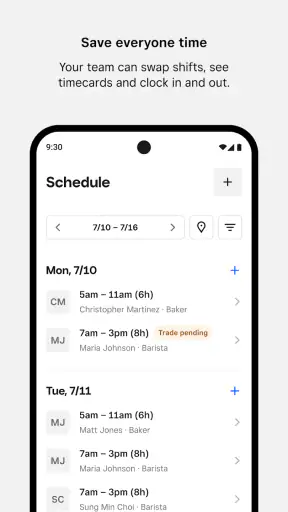
The schedule is most useful when I treat it as the starting point for a plan rather than just a list of times. I can look ahead, identify awkward gaps, and raise questions before the shift becomes urgent. For example, if I notice that my availability and an assigned shift do not line up, I would rather address it early than wait until I am already on the way to work.
This is one of the app’s less obvious strengths: it can move scheduling from memory into a visible shared workflow. That does not mean every workplace will use the same process for requesting changes or confirming coverage. The manager still needs to communicate the local rules. However, the app gives the team a common place to begin instead of forcing every employee to reconstruct the week from scattered messages.
I also see a trade-off here. A digital schedule is faster to update than a paper sheet, but speed can make changes easier to miss. If a worker assumes that opening the app once is enough, a later update may still surprise them. My advice is to check before each workday and after any conversation about a change. The app supports awareness; it does not replace personal responsibility.
For someone with a predictable routine, this may feel like a modest benefit. For someone working variable hours, it is more meaningful. A mobile schedule can help coordinate childcare, transport, study, or a second job. That is a concrete reason I would recommend it to hourly workers whose weeks do not look the same from one day to the next.
Step three: using communication without losing the context
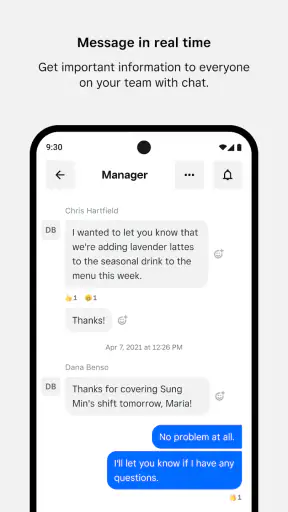
Communication is where the workflow becomes more than a calendar. A schedule tells me the assignment, but a message can explain the reason behind a change or clarify what the team needs. In my experience, this is the point where an integrated team app can be more useful than a personal messaging group: work information stays associated with the workplace rather than being mixed with family, friends, and unrelated notifications.
I would still keep messages concise and action-oriented. A good note identifies the shift or task, states what needs to happen, and makes clear whether a reply is required. This is not a criticism of Square Team specifically; it is a practical way to make any workplace communication easier to use. The app can provide the channel, but the team determines whether that channel remains readable.
A realistic example would be a colleague who cannot attend an upcoming shift. I might first check the schedule, then read the relevant team communication, and finally confirm the arrangement through the workplace’s established process. The benefit is that the conversation begins with shared information. The friction is that an employee should not assume a message alone automatically approves a schedule change. A manager or responsible person may still need to confirm it.
That distinction is important for new users. Square Team can help people communicate, but it should not encourage informal promises that conflict with the official schedule. I would use it to create visibility and reduce confusion, while treating the schedule and manager confirmation as the final reference for attendance.
Step four: checking earnings as part of the same routine
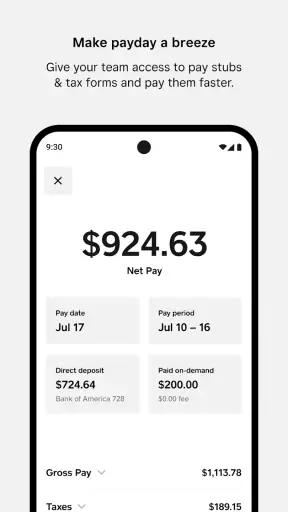
The earnings area gives the workflow a useful endpoint. After looking at shifts and communicating about work, I can review what I have earned through the app. I appreciate this because it connects time spent working with the financial result without requiring a separate search through paperwork or an unrelated tool.
For an employee, that can be valuable in several ways. I might use it to compare a week’s planned work with the earnings information available to me, prepare for a regular bill, or spot a question while the details are still fresh. It also gives me a reason to review the app even when there is no schedule change. The more naturally earnings checking fits into the routine, the less likely I am to postpone it until a problem becomes difficult to trace.
At the same time, I would not treat the earnings view as a substitute for careful pay-record review. If something looks wrong, I would compare it with the workplace’s official records and ask the appropriate manager or payroll contact. The app can make information easier to access, but access is not the same as resolving every discrepancy. This is one of the trade-offs that should be clear before relying on it.
My practical tip is to review earnings after a meaningful change in working hours rather than only at the end of a long period. That creates a shorter trail for questions. It is a small workflow improvement, but it is more useful than simply opening the app and scrolling without a purpose.
The handoffs: where employees, managers, and information meet
The strongest workflow depends on handoffs. A manager or business sets up the workplace information; an employee receives access; the team communicates changes; and the employee checks the resulting schedule and earnings. Square Team sits in the middle of those exchanges. It is not only a personal viewer, because the information has to originate from the workplace and remain current.
This means the quality of the experience can vary with team habits. If managers update schedules promptly and communicate clearly, the app feels like a dependable shared workspace. If updates happen in several places at once, employees may still wonder which source is authoritative. In that situation, the software is not necessarily the main problem; the organization needs a clear rule about where final decisions are recorded.
I would introduce the app to a team with a simple agreement: use the schedule for assigned shifts, use team communication for context and questions, and use the earnings area for personal review. That separation reduces ambiguity. It also helps new staff understand what each part of the app is for instead of treating every notification as equally important.
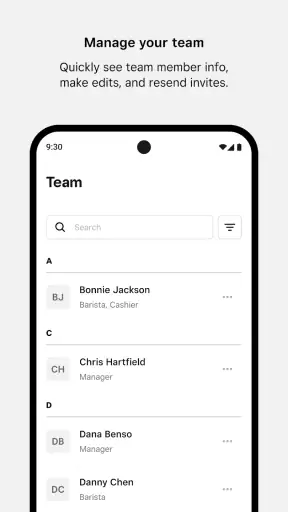
Another handoff happens when an employee changes phones, joins a new workplace, or needs help accessing the correct team. This is the kind of moment where a manager or administrator should be ready to assist. I would not assume that downloading the app alone completes the setup. The workplace connection is part of the product experience, and it needs to be handled deliberately.
The result: fewer small searches and a clearer daily rhythm
When the workflow goes well, the result is not dramatic automation. It is a quieter improvement: fewer questions about where the schedule is, fewer searches through personal chats, and a more direct route to earnings information. Those small gains matter because workplace confusion is often made of repeated interruptions rather than one large failure.
For a worker with changing shifts, I can see Square Team becoming a morning check, a pre-shift reference, and an occasional earnings review. For a manager, its value is more indirect from the employee’s perspective: the team has a shared place to receive information instead of depending entirely on individual memory. The app works best when both sides use it consistently.
The scale of adoption suggests that it is not an obscure experiment. It has more than a million installs and an average rating of 4.8 from around 8,500 ratings, with roughly 1,600 written reviews. I mention that context because it supports my impression that the app solves a recognizable workplace need, while the numbers should not be mistaken for a guarantee that every business workflow will fit it perfectly.
I also like that the age rating is Everyone. That does not tell me whether every feature will suit every workplace, but it does make the app feel accessible for a broad staff. Its free price removes one obvious barrier for employees deciding whether to install it, although the practical value still depends on whether their employer uses the surrounding Square workflow.
Where the flow breaks and who should choose something else
The first break occurs when the app is expected to do more than its focused role. If I need advanced workforce planning, detailed labor forecasting, extensive employee records, or a broad payroll investigation system, I would look at a dedicated workforce platform or use the employer’s established administrative tools. Square Team may complement those systems, but I would not assume it replaces them.
The second break is organizational. If a workplace keeps the schedule in one place, announces changes in another, and discusses earnings through a third channel, the app cannot create a single source of truth by itself. Employees may still face conflicting instructions. Before adopting it, a business should decide which information belongs in Square Team and how managers will confirm changes.
The third break is personal fit. Someone who works one fixed shift and already receives reliable information may find the app unnecessary. Likewise, a freelancer who does not belong to a structured team may get little value from a workplace-centered tool. I would skip it if my main goal were personal budgeting, investment tracking, or general money management.
There is also a human limitation: notifications and mobile access can encourage constant checking. I would use the app at sensible points in the day rather than treating every update as an emergency. Teams should be clear about which messages require immediate action and which can wait. That keeps the convenience from becoming another source of pressure.
Compared with paper schedules, Square Team is easier to carry and potentially easier to keep current. Compared with ordinary group chats, it gives work information a more defined home and connects communication with schedules and earnings. Compared with full workforce-management software, it is more approachable but less suitable for complex administration. That is the fairest way to position it: a practical employee-facing layer, not an all-purpose business control center.
My recommendation after using the complete workflow
I would recommend Square Team to employees in small or medium-sized teams who need mobile access to schedules, workplace communication, and earnings information in one place. It is especially helpful when shifts change, staff members move between locations or tasks, and the alternative is relying on memory or scattered messages.
Before installing it, I would ask my manager how the workplace expects it to be used. Where is the official schedule? How are shift changes approved? Which messages require a response? What should I do if earnings information raises a question? Those answers determine whether the app becomes a dependable daily tool or merely another channel to monitor.
My final view is positive but practical. Square Team does not impress me because it promises to solve every workplace problem. It earns its place by connecting a few high-frequency tasks that employees genuinely need: seeing the plan, understanding changes, staying in touch, and checking the financial outcome. If your team uses those parts consistently, the app can turn a messy workday handoff into a much clearer routine.
With a current version of 7.22, a free entry point, and support for iOS 9 or later, it is easy for eligible employees to try. I would choose it over a paper schedule or an informal chat-only arrangement, but not over specialized software when the job requires deep administrative control. For the right Square-connected workplace, that balance is exactly its appeal: focused enough to be approachable, yet useful enough to become part of the working day.


